

Best Ultrawide Monitor for Working From Home in 2026
After hundreds of hours testing ultrawide setups, we can say this with confidence: switching to an ultrawide is the single biggest productivity upgrade you can make in a home office.
But not every ultrawide is the right ultrawide. Screen size, resolution, connectivity, and panel quality all shape your daily experience in ways that spec sheets alone don't convey. This guide cuts through the noise with hands-on recommendations, a side-by-side comparison table, and clear advice on which monitor fits which type of remote worker.
Whether you're replacing a cramped laptop screen or consolidating a messy dual-monitor setup, here's everything you need to make the right call.
Our Top Picks at a Glance
Best overall for productivity
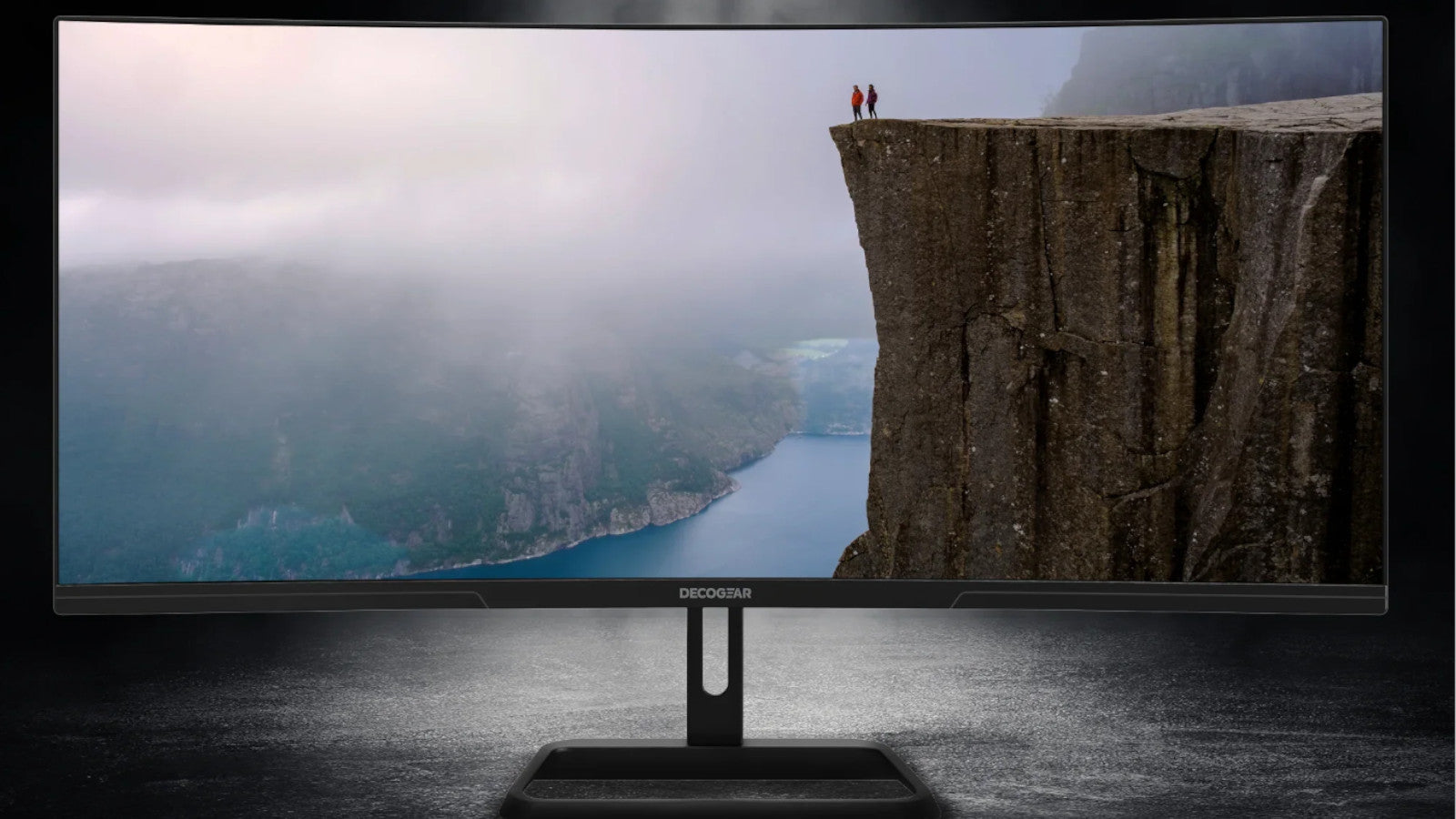
Deco Gear 34" Curved Ultrawide Business Monitor (3440x1440)
The sweet spot of size, resolution, and value for most remote workers. Sharp enough for all-day document work, curved for comfort, and connectivity that handles a typical laptop-plus-peripherals setup without a dock.
Best premium / dual-monitor replacement
Deco Gear 49" 5K DQHD Curved Ultrawide (5120x1440)
If you've been running two monitors and want one seamless panel, this is it. The 5120x1440 resolution gives you the equivalent of two 27" QHD screens side by side with zero bezel gap.
Best for creative professionals
Deco Gear 40" Curved 5K2K IPS Monitor (5120x2160)
Designers, photographers, and video editors need vertical pixels, not just horizontal width. The 5K2K resolution on an IPS panel delivers both color accuracy and workspace depth that standard ultrawides can't match.
Best hybrid work-and-play
Deco Gear 34" 180Hz Ultrawide (3440x1440)
Same productivity-class resolution as the business model, but with a 180Hz refresh rate that makes after-hours gaming genuinely enjoyable.
Best large-screen value
Deco Gear 39" Curved Gaming Monitor (2560x1440, 165Hz)
A spacious 39-inch curved panel at a competitive price point. Great for remote workers who want generous screen real estate and smooth visuals without paying ultrawide-premium prices.
Comparison Table: Deco Gear Ultrawide Monitors for Remote Work
| Model | Size | Resolution | Refresh Rate | Panel | Best For |
|---|---|---|---|---|---|
| 34" Business Monitor | 34" | 3440x1440 | 60Hz | VA | Everyday productivity |
| 49" 5K DQHD | 49" | 5120x1440 | 60Hz | VA | Power multitasking |
| 40" 5K2K IPS | 40" | 5120x2160 | 60Hz | IPS | Design & photo editing |
| 34" 180Hz | 34" | 3440x1440 | 180Hz | VA | Hybrid work + gaming |
| 39" Gaming | 39" | 2560x1440 | 165Hz | VA | Large-screen value |
Why Ultrawide Monitors Are a Game-Changer for Remote Work
We've used standard 27-inch displays, dual-monitor setups, and ultrawides ranging from 34 to 49 inches in real home office environments. The difference isn't subtle.
With a standard 16:9 display, your workday is an endless cycle of Alt-Tab. You toggle between your email, your main project, your messaging app, and your browser — constantly losing context as windows disappear behind each other.
An ultrawide monitor in a 21:9 or 32:9 aspect ratio changes that fundamentally. You tile two or three applications side by side on a single, continuous screen. Your Zoom call sits on the left third. Your document or spreadsheet fills the center. Your Slack or Teams stays visible on the right. No toggling, no lost context, no friction.
✓ Key Takeaway
In our experience, the reduction in context-switching alone saves 30 to 60 minutes across a typical eight-hour workday. That's real time back — and it compounds over weeks and months.
Curved panels add another practical layer. At 34 inches and above, a curve between 1500R and 1800R keeps the screen edges at a more consistent distance from your eyes. You turn your head less. Your peripheral vision catches the edges more naturally. After eight hours, the difference in neck and eye fatigue is noticeable.
What to Look for When Buying an Ultrawide for Your Home Office
Not every ultrawide suits every workflow. Here's what actually matters for remote work, based on the specs that impact your daily experience the most.
Resolution: The Single Most Important Spec
For a 34-inch ultrawide, the standard is 3440x1440 (UWQHD). At this pixel density — roughly 110 PPI — text stays sharp even when you're reading small fonts in spreadsheets or code editors. Two full-size documents sit comfortably side by side without scaling issues. This resolution handles 90% of remote work scenarios without breaking a sweat.
If your workflow demands more — financial dashboards, video editing timelines, multi-window development environments — a 49-inch 5120x1440 (DQHD) display gives you the horizontal equivalent of two 27" QHD monitors fused into a single bezel-free panel. The Deco Gear 49" DQHD is built for exactly this kind of heavy multitasking.
For creative professionals who need both horizontal width and vertical depth, 5120x2160 (5K2K) on a 40-inch panel is the premium choice. You get substantially more vertical space for toolbars, layers panels, and preview windows — a real advantage in Photoshop, Premiere, and similar apps.
BOTTOM LINE
For most remote workers, 3440x1440 at 34 inches is the sweet spot. Go bigger or higher-res only if your specific workflow demands it.
Panel Type: IPS vs. VA for Work
IPS panels offer the widest viewing angles and the most accurate color reproduction out of the box. If you do any design, photography, or video work — or if you share your screen with a colleague sitting beside you — IPS is the clear choice.
VA panels deliver deeper contrast ratios and richer blacks, which is an advantage in dimmer rooms or for media-heavy workflows. For general productivity — documents, spreadsheets, email, video calls — VA panels perform excellently and often come at a lower price point than comparable IPS displays.
✓ WHO SHOULD CHOOSE IPS
Creative professionals, anyone doing color-sensitive work.
✗ WHO SHOULD CHOOSE VA
General knowledge workers, anyone prioritizing contrast and value.
Connectivity: The Feature Most Buyers Overlook
A USB-C ultrawide monitor with Power Delivery is the single highest-impact convenience feature for laptop-based remote workers. One cable from your laptop to the monitor carries video, data, and power simultaneously. No docking station. No adapter collection. No cable management headaches.
Look for at least 65W of Power Delivery — enough to keep most work laptops charged while you use them. Higher wattage (90W+) is better if you run a power-hungry machine.
Beyond USB-C, prioritize monitors with at least one HDMI 2.0 and one DisplayPort input. This lets you connect two machines — a work laptop and a personal computer, for example — and switch between them with a button press instead of cable-swapping.
Built-in USB hubs are another underrated feature. Plugging your keyboard, mouse, and webcam into the monitor rather than directly into your laptop means you can dock and undock with a single cable connection. It turns your ultrawide into a de facto docking station.
Ergonomics: Non-Negotiable for All-Day Use
If you sit at your desk eight or more hours daily, monitor adjustability isn't a nice-to-have — it's essential. At minimum, look for height adjustment, tilt, and swivel. VESA mount compatibility (75x75 or 100x100) is critical if you plan to use a monitor arm, which we strongly recommend for ultrawides to free up desk space and allow precise positioning.
Curvature matters too. A 1500R to 1800R curve feels natural at standard desk distances (24-30 inches from the screen) and reduces the eye strain you'd otherwise feel at the edges of a wide, flat panel.
Anti-flicker (DC dimming) and hardware low blue light modes are worth checking for, especially if you work late or are sensitive to screen fatigue.
Ultrawide vs. Dual Monitor Setup: The Definitive Comparison
Where ultrawide wins:
- Seamless visual field with no bezel gap interrupting your center of vision
- Simpler cable management — one display, one set of connections
- Consistent color and brightness across the entire workspace
- Easier window management with built-in split-screen zones
- Cleaner desk aesthetics and smaller physical footprint
Where dual monitors win:
- Flexibility to angle each screen independently
- Option to use one display in portrait orientation (great for documents and code)
- Ability to mix sizes, resolutions, or panel types
- Lower cost if you already own one monitor
OUR RECOMMENDATION
For the majority of remote workers handling a mix of email, documents, video calls, and web-based tools, a single 34-inch ultrawide outperforms a dual setup. You get roughly the same horizontal workspace as two 24-inch monitors without the downsides of mismatched panels and a bezel gap right where your eyes focus most.
If you're a power user who genuinely needs the equivalent of two full QHD screens, a 49-inch super ultrawide like the Deco Gear 49" DQHD gives you that without the compromises of two separate panels.
The one scenario where we'd still recommend dual monitors: if you need one screen in portrait orientation for reading long documents or writing code. Ultrawides can't replicate that vertical layout.
Best Ultrawide Monitor by Work Style
For Everyday Office Work (Documents, Email, Video Calls)
Our pick: Deco Gear 34" Curved Ultrawide Business Monitor
This is the monitor that fits the largest number of remote workers. The 3440x1440 resolution gives you crisp, readable text across two or three tiled windows. The curved panel keeps everything comfortable at arm's length. And the connectivity handles a typical laptop-plus-peripherals setup cleanly.
✓ WHO SHOULD BUY
Remote workers in knowledge-work roles — project managers, marketers, analysts, writers, support professionals.
✗ WHO SHOULDN'T
Creative professionals who need color-accurate IPS, or power users who need more than 34 inches.
For Power Multitasking and Replacing Dual Monitors
Our pick: Deco Gear 49" 5K DQHD Curved Ultrawide
At 5120x1440, this monitor is literally two 27" QHD displays fused into one seamless panel. We found it ideal for workflows that involve monitoring multiple data streams simultaneously — financial dashboards, customer support queues, development environments with terminal + editor + browser, or complex project management views.
✓ WHO SHOULD BUY
Power users, financial analysts, developers, operations professionals, and anyone running two monitors.
✗ WHO SHOULDN'T
Anyone with a desk under 48 inches wide, or workers who only need two or three windows visible.
For Design, Photo Editing, and Video Production
Our pick: Deco Gear 40" Curved 5K2K IPS Monitor
The 5120x2160 resolution on an IPS panel is purpose-built for creative work. You get accurate color reproduction, wide viewing angles, and — critically — more vertical pixels than a standard ultrawide. In Photoshop or Premiere, that extra height means your canvas stays large even with toolbars and panels open.
✓ WHO SHOULD BUY
Graphic designers, UI/UX designers, photographers, video editors, and any creative professional.
✗ WHO SHOULDN'T
General office workers who don't need IPS accuracy or higher resolution — you'd be paying for unused specs.
For Hybrid Work and Gaming
Our pick: Deco Gear 34" 180Hz Ultrawide
Same 3440x1440 resolution as the business model — equally sharp for documents and spreadsheets during the day. But the 180Hz refresh rate makes evenings an entirely different experience. Games are fluid and responsive, streaming looks smooth, and even regular desktop use feels snappier.
✓ WHO SHOULD BUY
Remote workers who game after hours and want one monitor that does both jobs well.
💡 ALSO CONSIDER
The 39" Gaming Monitor if you prefer a larger screen with 165Hz.
How to Set Up Your Ultrawide for Maximum Productivity
① Use built-in window snapping
Both Windows (Snap Layouts) and macOS (with third-party tools like Magnet or Rectangle) let you snap windows into predefined zones.
② Position the monitor correctly
The top edge of your screen should be at or slightly below eye level. Arm's length distance (24-30 inches) from your eyes.
③ Calibrate your display
Adjust brightness to match your room lighting and tweak color temperature to a neutral 6500K.
④ Run a single cable when possible
If your monitor and laptop both support USB-C with Power Delivery, use it.
Frequently Asked Questions
Is a 34-inch ultrawide big enough for working from home?
Yes — for most remote workers, 34 inches at 3440x1440 is the ideal size. It provides roughly the same horizontal width as two 24-inch monitors, which is enough to comfortably tile two full-size application windows or three narrower panels. Unless your workflow specifically demands more simultaneous windows, 34 inches covers the vast majority of office work.
Should I get a curved or flat ultrawide monitor?
At 34 inches and above, curved is the better choice for productivity. A 1500R to 1800R curvature keeps the screen edges at a more consistent distance from your eyes, reducing peripheral distortion and neck strain from turning your head. The effect is subtle on shorter sessions but very noticeable after a full eight-hour workday.
Is an ultrawide monitor better than two monitors for remote work?
For most people, yes. An ultrawide provides a seamless workspace without a bezel gap in your center of vision, simpler cable management, and consistent color and brightness. The main advantage of dual monitors is the ability to use one screen in portrait orientation. If you don't need that, a single ultrawide between 34 and 49 inches will give you a better overall experience.
Do I need a USB-C monitor for my home office?
You don't strictly need one, but it's the single biggest quality-of-life upgrade for laptop-based workers. USB-C with Power Delivery handles video, data, and laptop charging through one cable. It eliminates the need for a separate dock and reduces cable clutter.
What resolution should I choose for a work-from-home ultrawide?
For a 34-inch ultrawide, 3440x1440 (UWQHD) is the standard and the best fit for most workflows. For creative work requiring more pixel density, 5120x2160 (5K2K) on a 40-inch panel is the premium choice. For maximum multitasking, 5120x1440 (DQHD) on a 49-inch display gives you the equivalent of two QHD monitors in one.
How much should I spend on an ultrawide monitor for remote work?
A quality 34-inch UWQHD ultrawide for productivity typically ranges from $300 to $600. Premium options — 40-inch 5K2K or 49-inch DQHD — run from $700 to $1,200+. Most remote workers get excellent value from a mid-range 34-inch model.
Can I use an ultrawide monitor for video calls?
Absolutely. Video conferencing apps like Zoom, Teams, and Google Meet work perfectly on ultrawide displays. The advantage is that you can keep your video call in one portion of the screen while referencing notes or shared documents alongside it.
The Bottom Line
The best ultrawide monitor for working from home depends on how you work — but for most remote professionals, the answer is straightforward.
If you want the best balance of size, resolution, and value for everyday productivity, the Deco Gear 34" Curved Ultrawide Business Monitor is our top recommendation.
If your workflow is more demanding, the 49" DQHD and 40" 5K2K IPS deliver the space and quality that power users and creative professionals need.
Ready to upgrade your home office?
Explore the full Deco Gear ultrawide monitor lineup at decogear.com to find the right fit for your workspace.

Share:
Common Monitor Issues and Fixes